Overview
The client approached the GoFarWell team during the early planning phase for a new mobile authentication app. At kickoff, they demonstrated their biometric technology and needed a user interface that could help communicate how the product would work for both end users and administrators.
The project included UX/UI design, interaction flows, prototype review, front-end implementation, style guide support, and documentation for the client’s development team.
Objective
Design a mobile two-factor authentication interface that incorporated biometric input for account creation and identity verification. The early UI work needed to function as both a clickable prototype for review and a working front-end demonstration the client could use to validate the product direction.
My Role
I worked as the UX/UI Developer on the project, contributing to requirements gathering, research, user and process flows, interaction design, prototype development, and front-end implementation.
My work focused on defining in-app navigation, translating mockups into a working interface, creating interactive Adobe XD prototypes for review, and converting the approved prototype into HTML5, CSS3, and JavaScript using Bootstrap as a front-end foundation.
Team
UX/UI Developer: Ryan Smith and Design: J. Ruesch
Tools
Adobe Creative Suite, Adobe XD, HTML5, CSS3, JavaScript, Bootstrap, Git
Released
January 30, 2016
Challenge
The app needed to make a complex biometric authentication process feel clear and approachable. Users had to create an account, confirm their identity, capture a biometric photo, and understand whether the system successfully verified them.
The client also needed administrative screens for reviewing accounts and verifying new users, which meant the interface had to support both customer-facing and internal workflows.
Project Constraints
The project was an early-stage product experience, so the UI needed to support demonstration, review, and iteration before the client connected the final back-end logic and biometric services.
The front-end prototype also needed to be structured simply enough for the client’s development team to inherit, extend, and integrate into the final application.
Approach
The design and implementation process focused on turning the client’s biometric technology demo into a usable mobile app flow.
Key considerations included:
•Mapping account creation and biometric capture into a clear step-by-step flow
•Defining user navigation and interaction patterns for the mobile experience
•Supporting both user-facing and administrative workflows
•Creating interactive Adobe XD prototypes for client review and proofing
•Using prototype feedback to support iteration toward a second demo
•Building a functional front-end prototype with reusable page templates
•Delivering the prototype through Git so the client’s team could integrate back-end logic and biometric functionality
•Defining user navigation and interaction patterns for the mobile experience
•Supporting both user-facing and administrative workflows
•Creating interactive Adobe XD prototypes for client review and proofing
•Using prototype feedback to support iteration toward a second demo
•Building a functional front-end prototype with reusable page templates
•Delivering the prototype through Git so the client’s team could integrate back-end logic and biometric functionality
Design and Implementation Considerations
The core UX challenge was helping users understand an unfamiliar biometric process without overwhelming them. The account creation flow needed to collect only essential information, while the biometric capture flow needed to communicate what the system was doing and why.
The prototype also needed to demonstrate how a limited set of page templates could support account setup, biometric capture, validation states, administrative review, and future app expansion. This made the deliverable useful not only as a design artifact, but also as a front-end reference for the client’s development team.
Outcome
The project delivered a working mobile UI prototype, supporting style guide materials, and front-end codebase that the client could use to demonstrate the product concept and continue development.
The final prototype helped communicate the app’s user flow, interaction model, and interface structure while giving the client’s team a practical foundation for connecting back-end logic and biometric technology into the published app, SimplifIDe.
Screens
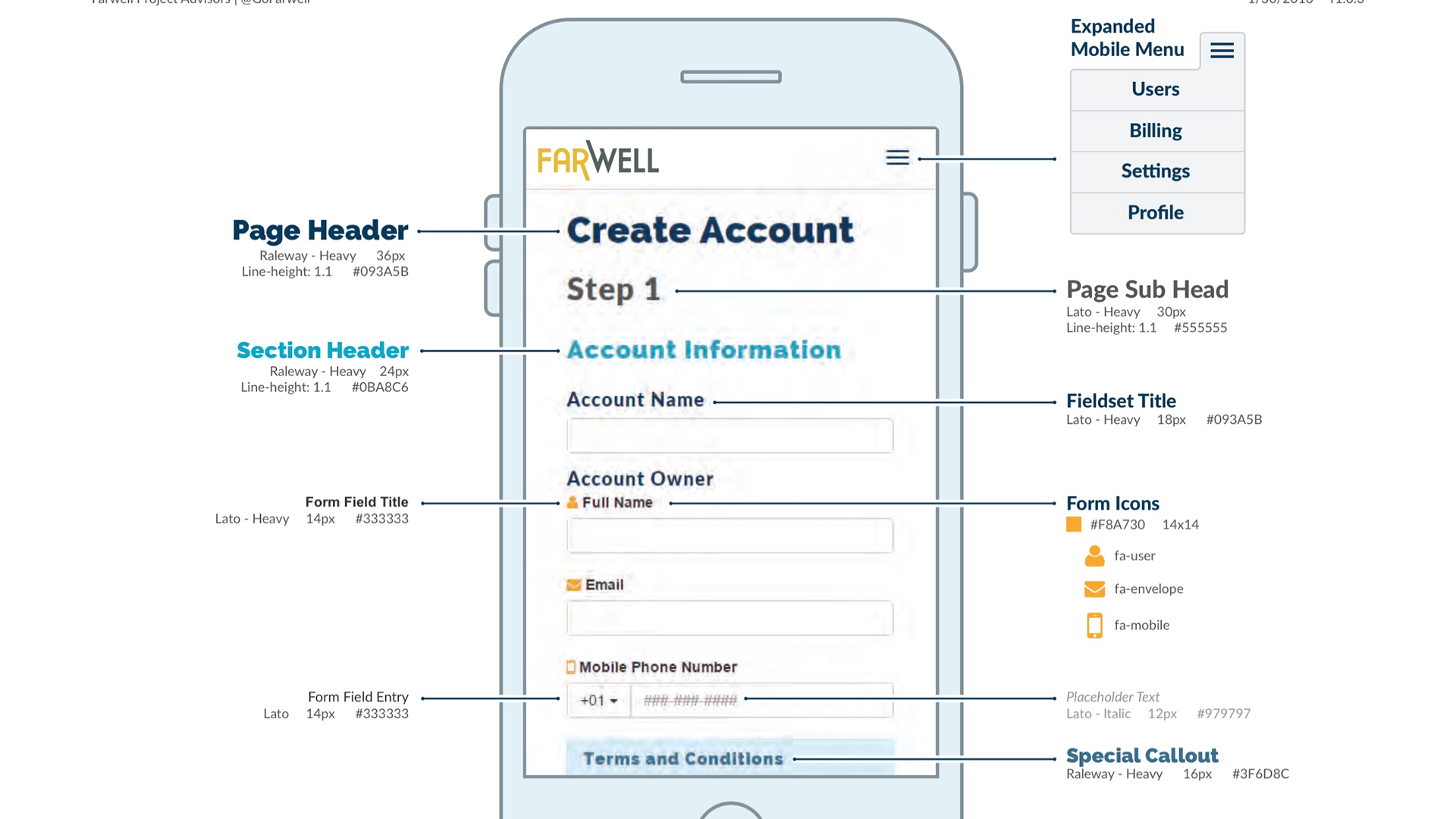
Create Account
Collects the essential user information needed to create a unique account and begin the two-factor authentication process.
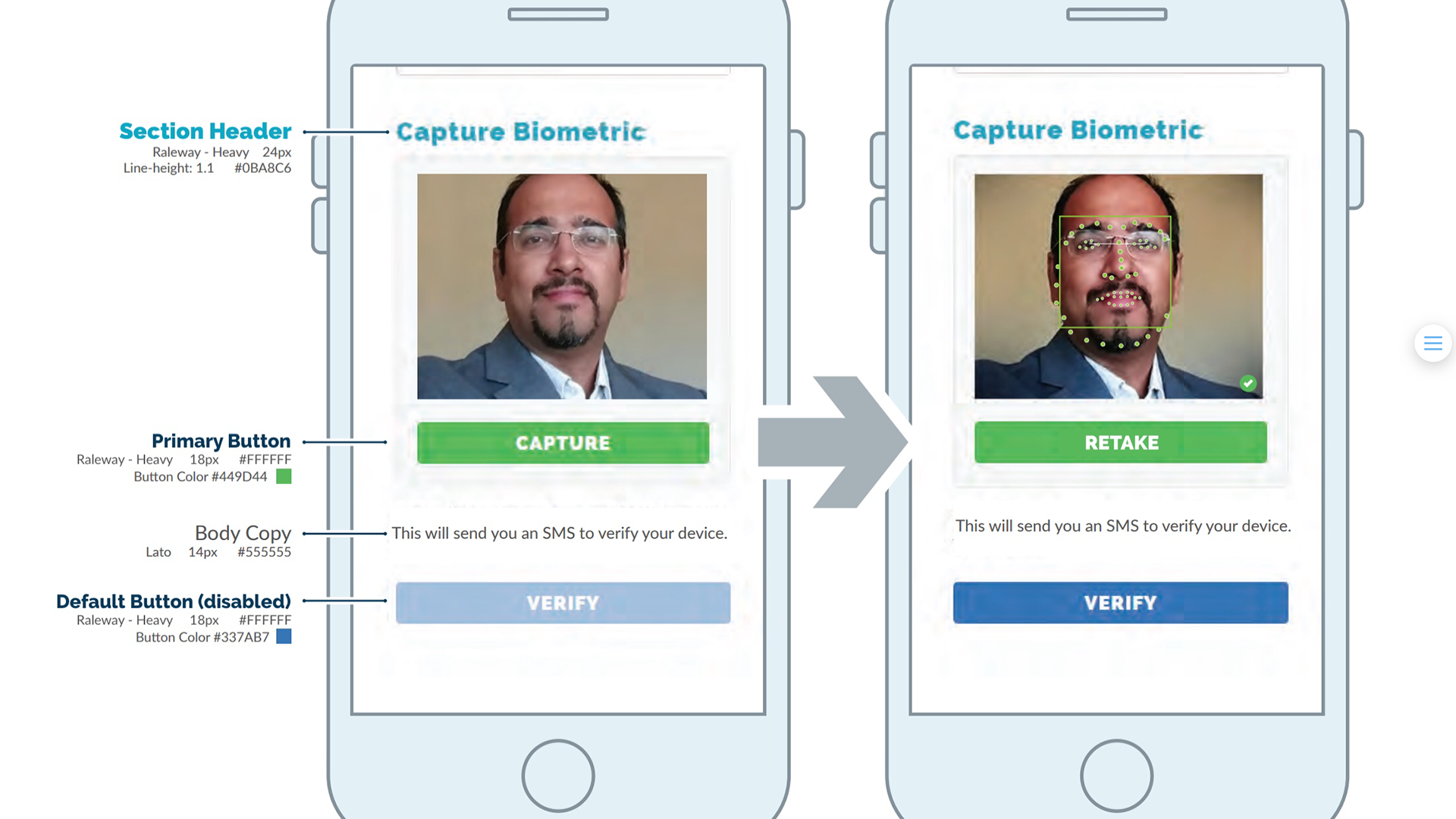
Capture Biometric
Guides the user through capturing a selfie, allowing the system to scan facial features and verify whether the biometric profile is unique before account setup is completed.
Admin Screens
Review Accounts
Supports administrative review of user accounts during the verification process.
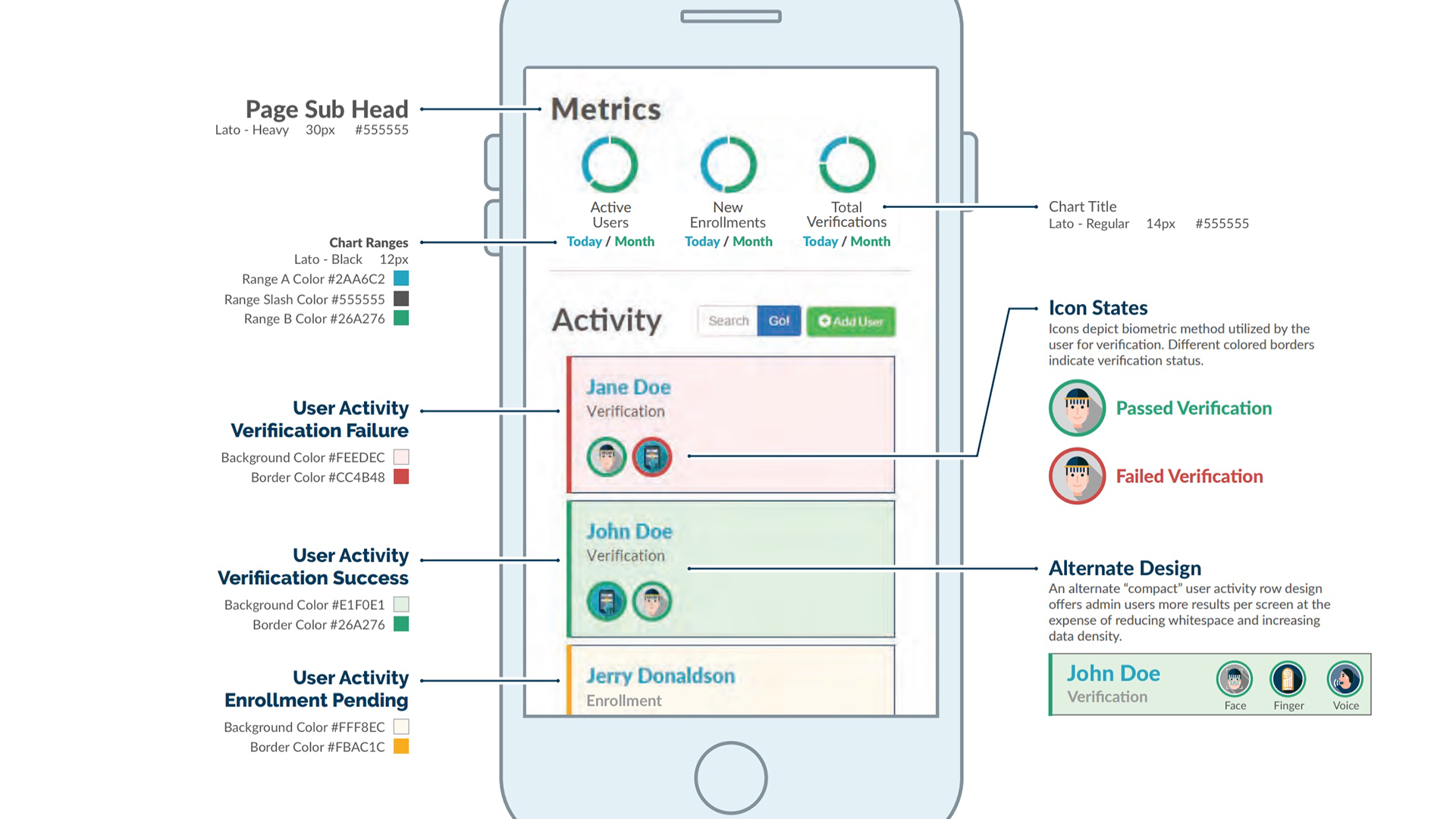
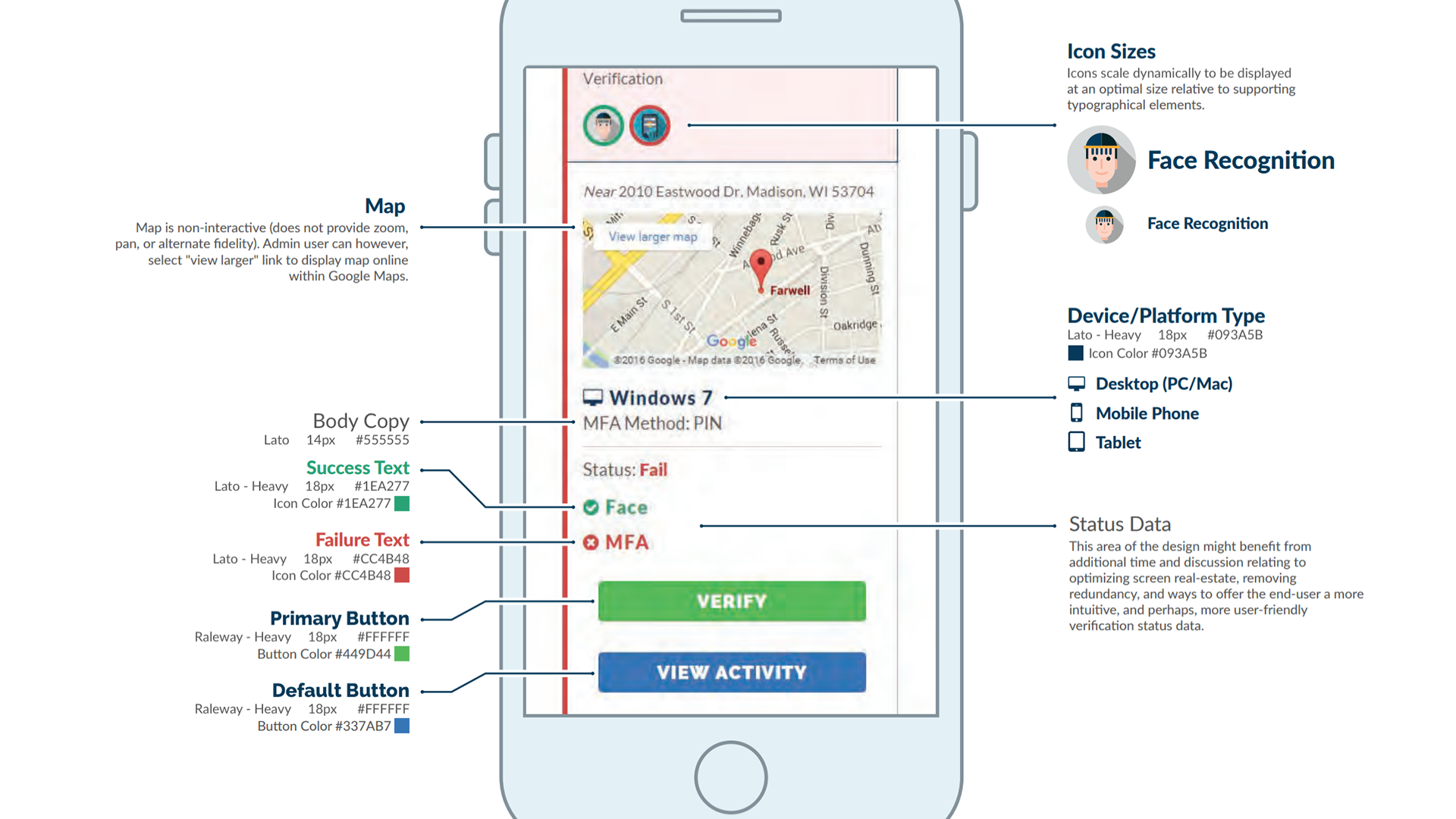
Verify New Accounts
Provides an administrative workflow for reviewing and verifying new account submissions.
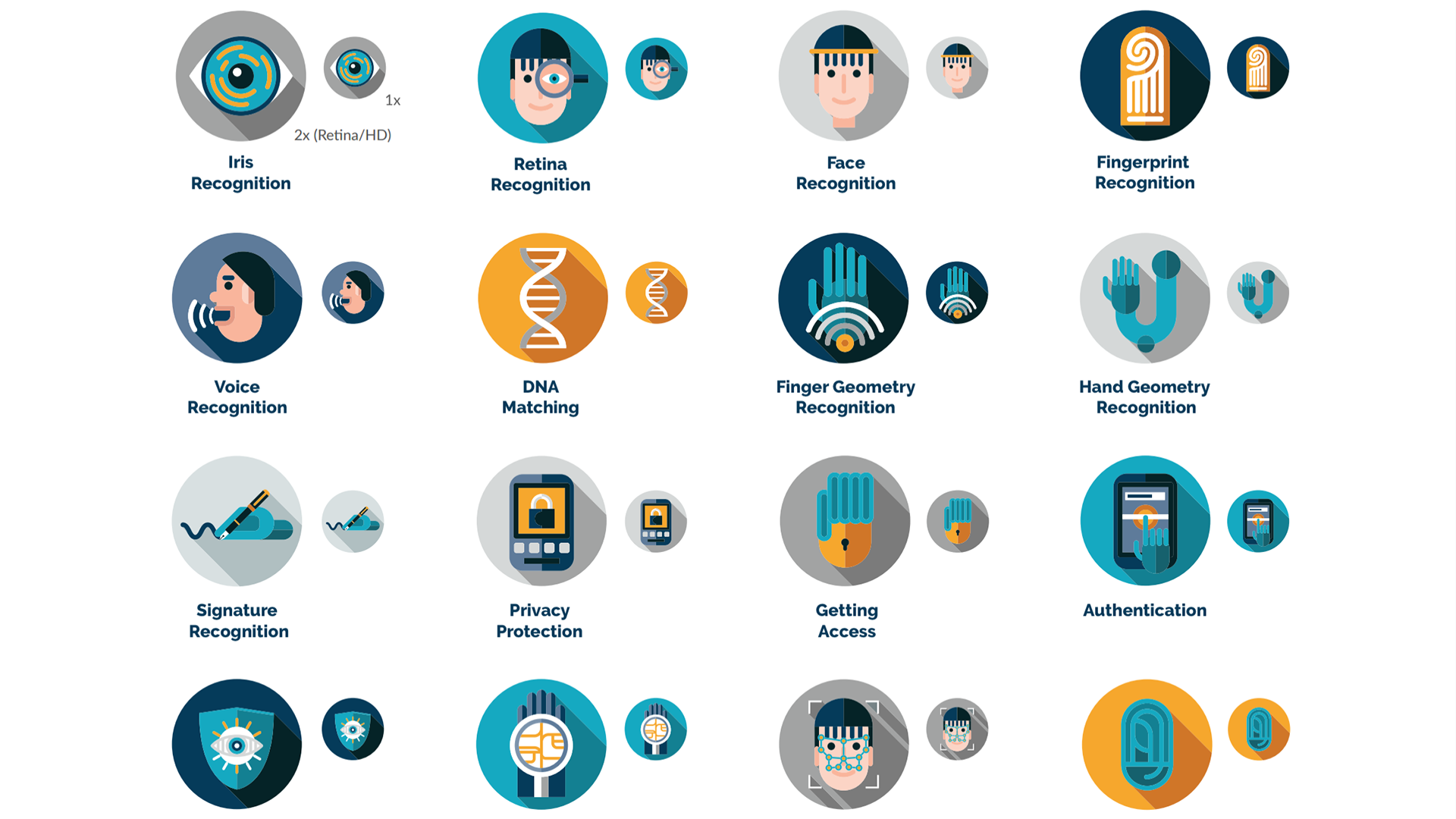
Iconography
Art Direction
The visual system included supporting iconography and interface elements to reinforce the app’s security-focused identity while keeping the mobile experience clean and approachable.